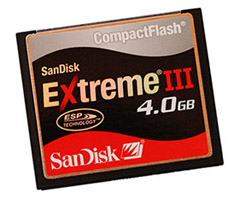
Once you snap some photos, the memory card becomes the most important part of your camera, because it’s responsible for transferring your photos safely back to your computer.
Just like any kind of technology, a lot can go wrong with memory cards. And the last thing you want to happen is to lose all your photos after capturing some spectacular shots, right?
So, here are 11 tips that will help prevent you from running into a memory card disaster:
1 – Format a new memory card as soon as you get it
Even if your memory card came “preformatted,” it’s still a good idea to format them again with your own camera. And, only format the card from the camera itself (and NOT when it’s inside a card reader that’s connected to your computer). This will make sure the memory card is using a file system the camera recognizes.
2 – Use multiple small cards, instead of one big one
With the huge memory cards available today, it’s tempting to just buy the largest one so you won’t have to switch cards. But, what if your 128GB card fails? Then you just lost thousands of photos! That’s why you should use multiple smaller cards, to spread out your photos and reduce the probability that you’ll lose them all at once.
3 – Always leave a few extra shots on your memory card
Your camera probably has a number on the screen that tells you how many photos you can take before your memory card is full. This number is only an estimate, so if you happen to take a photo when your card is actually full, you may corrupt the data on the card. To avoid this problem, always leave some extra space on the card.
4 – Always safely “eject” your memory card from the computer
When you’re done transferring your photos to your computer, make sure to “eject” them properly and don’t just yank it out of the reader (or yank out the USB cable). On Windows, there should be an icon in the lower right corner of your screen for safely removing USB media, and on Macs you can just use the eject button on your keyboard. This is important because although you may think the computer is no longer reading/writing to the card, it may still be accessing it for some reason. Ejecting it will tell the computer to stop communicating with it, so you can take it out safely.
5 – Format your memory card, instead of deleting all photos
Formatting your memory cards is sort of like resetting them, and making them “fresh” again. It will help correct any disk errors that may have occurred during your last shoot.
6 – Store your cards in a safe place
It’s important to protect the contacts on your memory cards, because the smallest piece of dust can cause reading/writing problems and ultimately loss of photos. To protect them, always store them in the case they came with (or get some if they didn’t come with a case), and don’t leave them lying around on your desk.
7 – Turn off your camera before removing the memory card
Although this may seem like a no-brainer, there’s already been a few times where I almost forgot to turn off the camera before removing the memory card. If you yank out the card with the camera on, there’s a chance you may remove it when the camera is reading/writing to it, which could potentially damage files on the card.
8 – Use a good quality card reader
Although the reader merely reads the memory card, there’s still a chance it can damage the card. That’s why it’s important to always use a good quality reader. The best thing to do is use a reader made by the same manufacturer as the cards you use.
9 – Don’t push your batteries to the limit
If you push your batteries to the limit and wait until they completely run out of energy, then there’s a chance they’ll run out at the exact moment your camera is writing to your memory card (which could cause data loss). To avoid this possibility, put in a fresh battery as soon as your camera indicates the current one is low.
10 – Don’t use the same card on multiple cameras
If you used a card to take 40 photos on one camera, don’t put it in a different camera to take more photos. The two cameras (even if made by the same manufacturer) may have different file system requirements or architecture, so mixing them between cameras could corrupt the data on the card.
11 – Only use good quality memory cards
Photos are known to disappear “mysteriously” with cheap off-brand memory cards, so always buy good quality cards. You don’t have to get the top of the line super-mega-fast-10,000x-warp-speed-gold-plated cards, but you shouldn’t get the no-name cheap ones either. Personally, I’m a big fan of SanDisk and Lexar.
Get more great tips in our free weekly newsletter.

 About the Author: Steve Berardi is a naturalist, photographer, software engineer, and founder of PhotoNaturalist. You can usually find him hiking in the beautiful mountains and deserts of southern California.
Thanks for the tips, they are all very sensible. I use Kingston cards (one is 1GB, the other is 2GB), and they have served me very well… 1000s of photos well. I’ve been trying to reformat my cards more often, just to “refresh” them.
Hi, great site, havent been able to stop reading your site since I found it 2 days ago.
I would like to add 1 point, not really a memory card problem, but loss of photos.
I’ve got a Canon 500d and my laptop has a slot for SD Cards.
I was on holiday, so everyday I would copy all my photos to my computer, but one day in the holiday, I accidentally Hibernated my laptop with the card still in it.
Next day I thought to rather put the card back in before switching the laptop back on, somehow Windows XP remembered what was on the card, and cleared ALL extra photos that were on the card.
It was a sad day for me as I really took nice photos (IMO) that day.
Regards
Andre
Thanks, Andre! Glad you’re enjoying the site 🙂
Good point about removing cards before you sleep/hibernate your computer. I’ve run into similar problems with pen drives.
hey this is maritza and i have a problem with my memory card (camara) i hope you will be able to give me same advise ,there’s lot of photos on i took not long ago and when i whanted to load it on my computer it didnt read it at all. And on the corner the blue plastic covering the gold blocks broke of but even before it didnt whanted to read ?
do memory cards ever need to be retired, or do you just use them until they die? i have some that are several years old and i wonder if i should rotate them out?
if you do retire them, do u do it based on time (months? years?) or # of frames shot?
thanks!
-sarah
One more tip. Ask your trusted retailer which cards seem to have the highest DOA rate (failure right after purchase) and stay away from these. I strike up a conversation with the sales person for a few minutes and then ask the question. There are certain brands I stay away from as a result.
And what brands are the ones that malfunction the most? Kindly share those brands so that we can stay away from them.
I have a Kodak Z712IS and have enjoyed it but am wondering if my difficulty is camera or flash card. Can take pix and seem to store to card fine until I turn the camera off. When I turn it back on the memory card needs to be reformatted. Tried an other card — same problem — could both cards be bad or is it a camera problem??? Internal memory works fine but it’s pretty limited.
what do i do if i have forgotten to eject my media card on a few occasions from my laptop and i have just yanked it out, and now my blackberry wont save pictures or let me see my camera photos, can you help me in any way please!?
TIP # 12=
I never delete or reformat my cards. I just retire them, with the photos on them. They become another way of “backing-up” my photos. Essentially they are digital negatives. Yes, I use online & cloud backup, plus external H.D.’s and DVD’s. But being a professional, I REALLY depend on having my photos available to me. Like Heather, I also use Kingston 4 & 4 GB’s.
Considering the “one-time-use” of my SD flash memory cards, It’s a reasonably small expense for my peace of mind.
Since a photo captures a slice of time, it is NOT replaceable, so Don’t loose it, ok?
Memory cards consist of capacitors. They have to contain electric charge for the data to be readable. After long time without use some capacitors lose their charge and you lose data. It is advised to use the memory card from time to time just to recharge the capacitors and preserve the stored media. I am surprised this isn’t listed as one of “tips”.
Hi, Slawomir…I do the same (keep all my old SD cards, without deleting images, for the same reason: I’m almost superstitious/ paranoid that my laptop might crash and I’ll lose all my images). I’ve recently noticed that you can edit the ‘description’ or title on your computer’s h:/. drive, so, for example, you can change or extend a line like ‘external hard drive’ or ‘SD card’ to read ‘Holiday July 18’, or whatever, so it saves you having to view the images to see what’s on there. Probably obvious to many, but I’ve only just ‘twigged’ it!
My camera, out of nowhere says no images. Yet if I look at how much of my card is in use, it shows almost full. Is there a way to get to all of the pictures that must still be on the card? My computer won’t read it either.
I use 2 or 4GB san disc cards, Often I only have only 20 shots on them before I load them to the computer fhrough an old Fuji fine pix system. I then delete all and sometims format the card in the camera, question is, am I doing the right thing? New here and think I am going to enjoy your site, already learnt a few tips.
Hey Steve, I am looking to order some sd cards for my new point and shoot camera. I am wanting to purchase 3 or 4 of the 8 GB cards.
Can I trust B&H (your link above) to sell me legitimately produced cards? I have heard there are some fake ones being sold online 🙁
2nd question if I may. Do you think Lexar is going to be around awhile? Can’t speak for California, but in central Ky., Sandisk is everywhere and only in one place did I find Lexar being sold.
Thank you for your help with this!
Brent L
Hi Brent, yes you can definitely trust B&H to sell you legitimate cards. Personally, I buy all my gear through B&H. I would definitely avoid buying camera stuff from Amazon though, I’ve heard numerous reports of fake gear being sold by their resellers.
Since writing this article, Lexar announced they’d be going out of business, but then I heard some other company bought them and plans on keeping them around. Either way, I now only buy Sandisk just to be safe.
Steve,
Thanks so much for your help and getting back to me on this so quickly! You’ve been very helpful. I think I will go Sandisk and start with getting three or four 8GB cards. I’ll probably dedicate one for video only.
Thanks again!
Sincerely,
Brent L